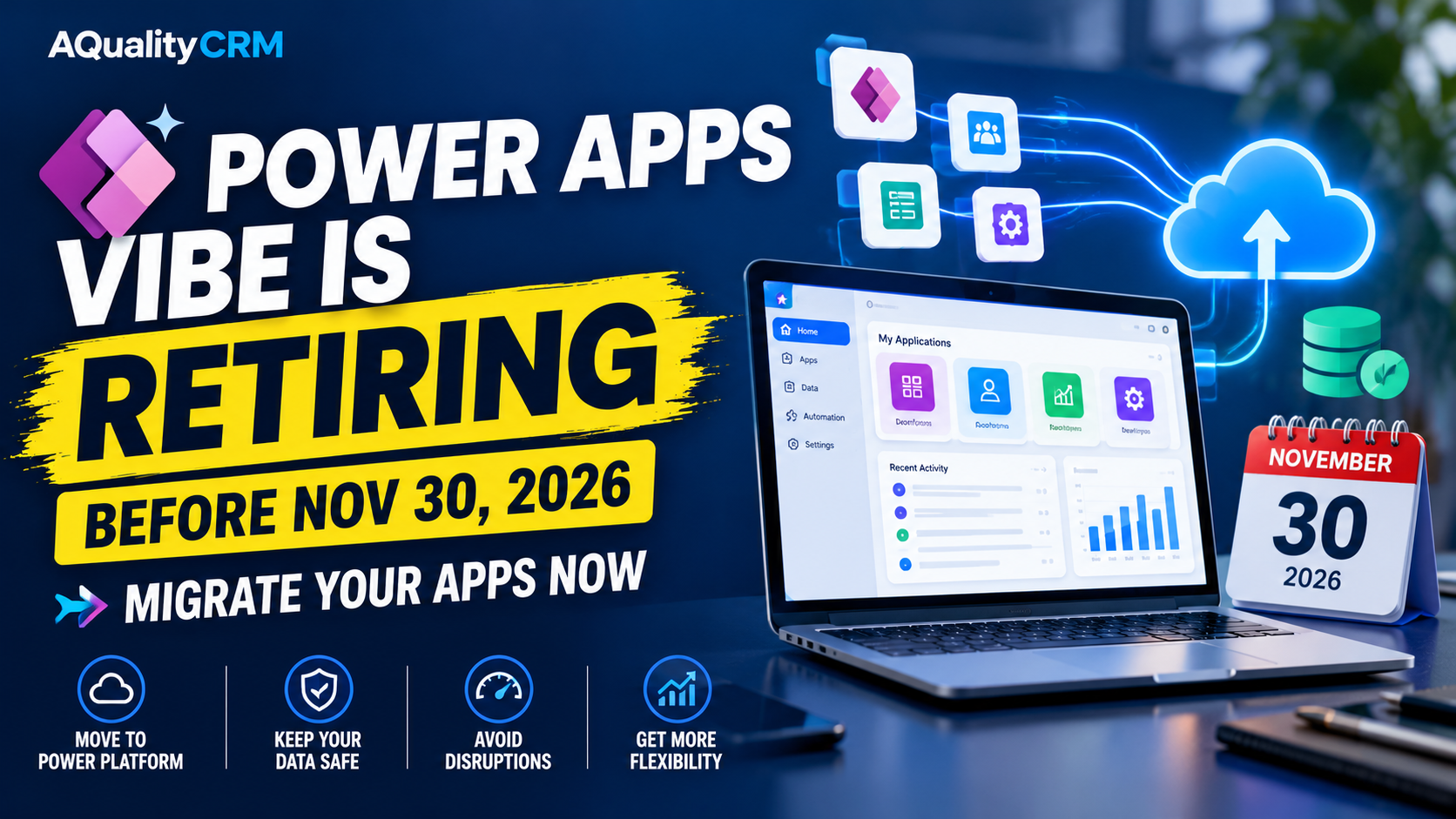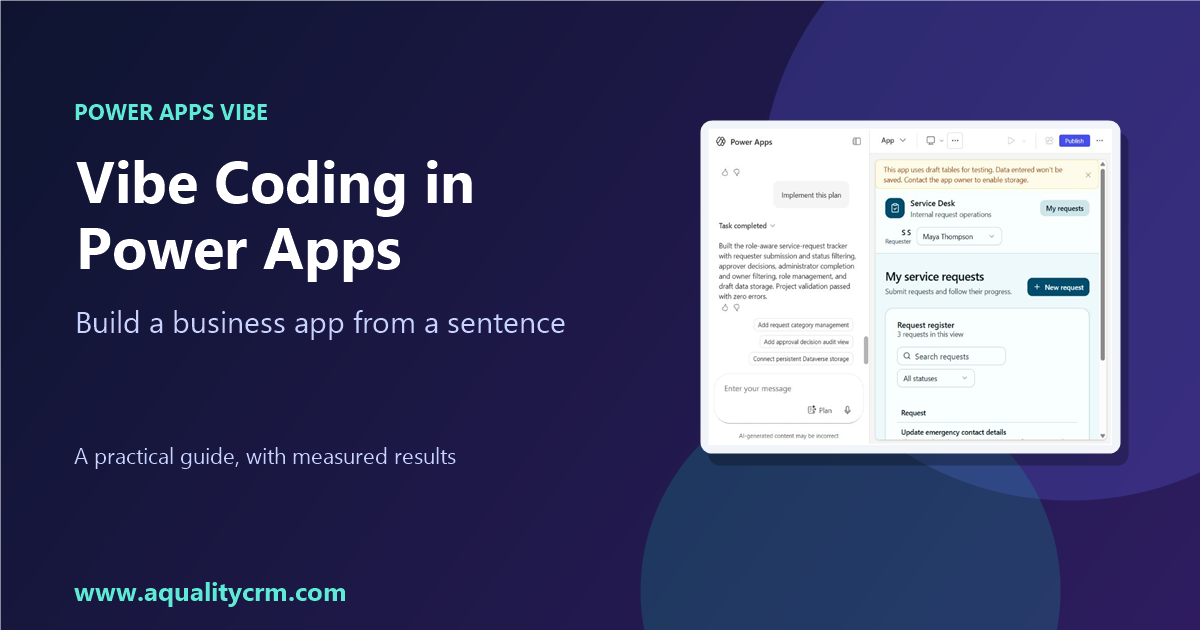
Retirement notice (October 2026): Microsoft is retiring the App Builder agent in Microsoft 365 Copilot and vibe.powerapps.com. New app creation on those platforms stopped in mid-October 2026, and apps that are not migrated by November 30, 2026 will no longer be accessible. Read the Microsoft Message Center entry (MC1505609) for details. The guidance in this post applies to apps built before that date.
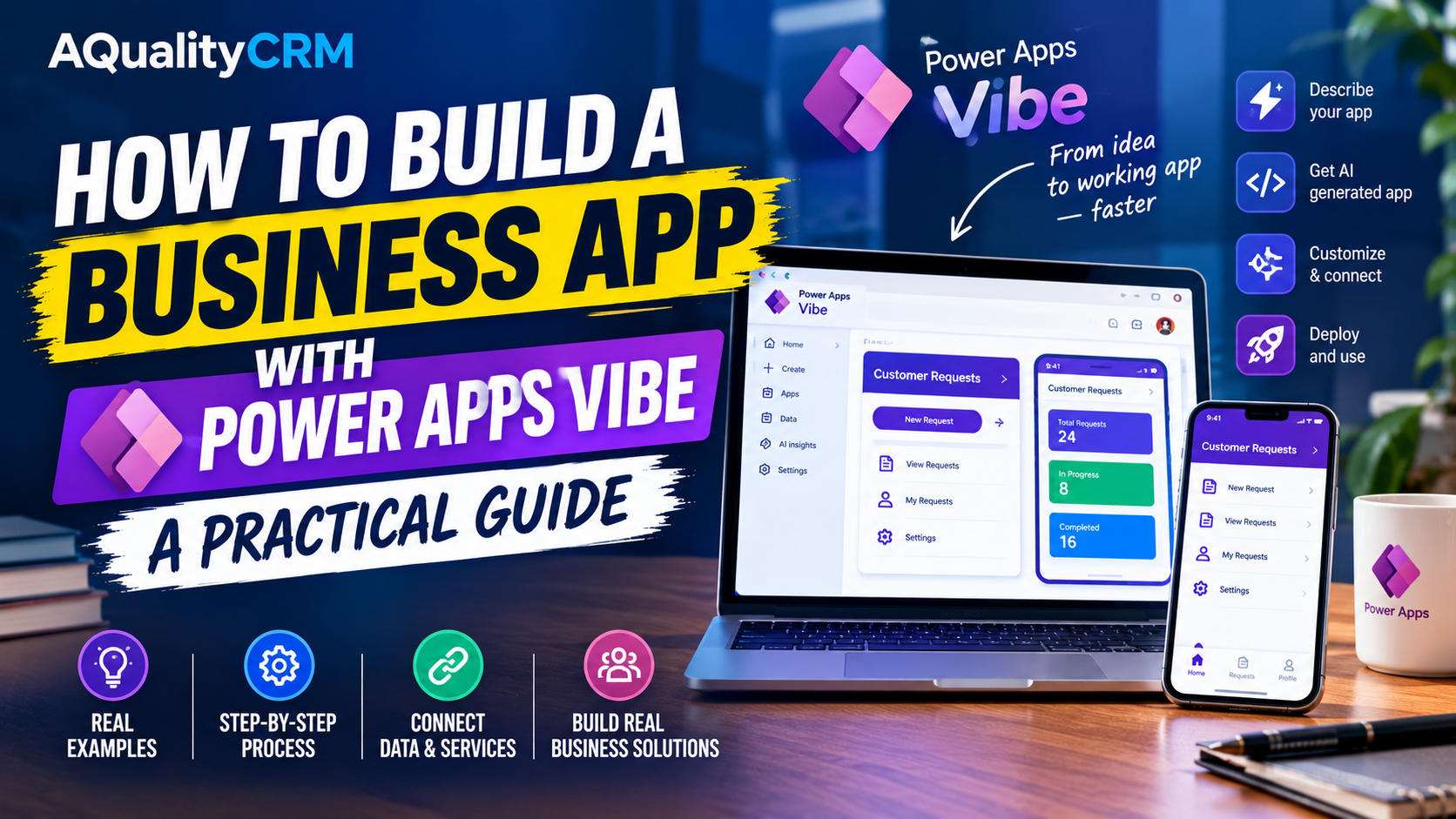
A complete guide to Microsoft’s Power Apps vibe experience: how it works, how to set it up, how to build, review, edit, publish, and govern an app, and where it stops. Section 17 covers what happened when we built the sample app.
Preview notice: Power Apps vibe is a preview feature and is documented as prerelease and subject to change. Check the official documentation before you roll it out. Microsoft also says app building is moving to Copilot Cowork and Copilot Studio, and recommends those experiences going forward. Details are in the section “Where this is going.”
- Power Apps vibe builds a business app from a plain-language description. It generates a plan, a Dataverse data model with sample data, and a web app with generated code, in one workspace.
- It is in preview. It isn’t available in a default environment, and access is limited to the US, Australia, Asia, and India regions, in English.
- Plan mode is on by default. The agent reviews the plan and may ask clarifying questions before it builds.
- The data model and the app stay in draft until you publish. Autosave is on by default for apps created after April 9, 2026.
- In our build, publishing with AQualityCRM-Dev as the data target stored the tables in Dataverse. The sample draft records did not carry over, so the published app started empty.
- You can edit the app through chat, through inline visual edits, or directly in the code view. Direct code edits aren’t supported in the code view, and the chat can’t change existing Dataverse tables.
- Known limits include: one app per plan, no coauthoring, no canvas or model-driven apps, and shared users can only play the app.
1. What Power Apps vibe is
Microsoft describes Power Apps vibe as “an AI-native platform that builds solutions to business problems, including requirements, data, and full apps with generated code.” You describe the problem, and the platform handles the planning, the data, and the app. Microsoft’s pitch is speed: “Go from idea to working app in minutes, not weeks.” Treat that as the vendor’s claim. Section 17 shows what one build actually took.
Microsoft names three target audiences: business analysts, citizen developers, and professional developers who want line-of-business apps without building the technical layer by hand. Its example use cases are employee onboarding apps, inventory management, project tracking, customer feedback apps, and departmental workflows.
The key shift is that you start with intent, not with screens or a data source. In the classic canvas or model-driven workflow, you pick a data source and then build screens. In vibe, the agent proposes the roles, tables, screens, and approvals first, and you correct them before anything is built.
Watch the sample video for the full flow: Power Apps VIBE Experience – Step-by-Step Tutorial. The steps below follow Microsoft’s documentation and our own build, not the video transcript.
2. Before you start: setup and requirements
2.1 Tenant setup
A tenant admin has to turn on Copilot for the tenant:
- Sign in to the Power Platform admin center.
- In the navigation pane, go to Settings to open Tenant settings.
- Set the toggle for Copilot in Power Apps (preview) to On.
- Select Save.
2.2 Optional: Anthropic models for higher quality
Microsoft says that enabling Anthropic models can produce higher-quality apps. It’s optional but recommended. The setting is in the Power Platform admin center: Environments > your environment > Settings > Features > Enable External Models. Microsoft’s tenant settings documentation covers the details. Check your organization’s data policies before you enable external models.
2.3 Environment rules
- Vibe isn’t available in a default environment. Use a non-default environment.
- Vibe is currently available only in the US, Australia, Asia, and India regions, and only in English.
- To check where an environment is hosted, go to the Power Platform admin center, select Manage > Environments, and read the Region column.
Earlier secondary sources listed fewer regions. Microsoft’s current page lists the four above. Confirm it again on the day you publish, since the page is subject to change.
If you get connection errors or can’t see environments, check the region first. Microsoft’s support route is Power Platform support.
2.4 Getting in
There are two ways to open the experience:
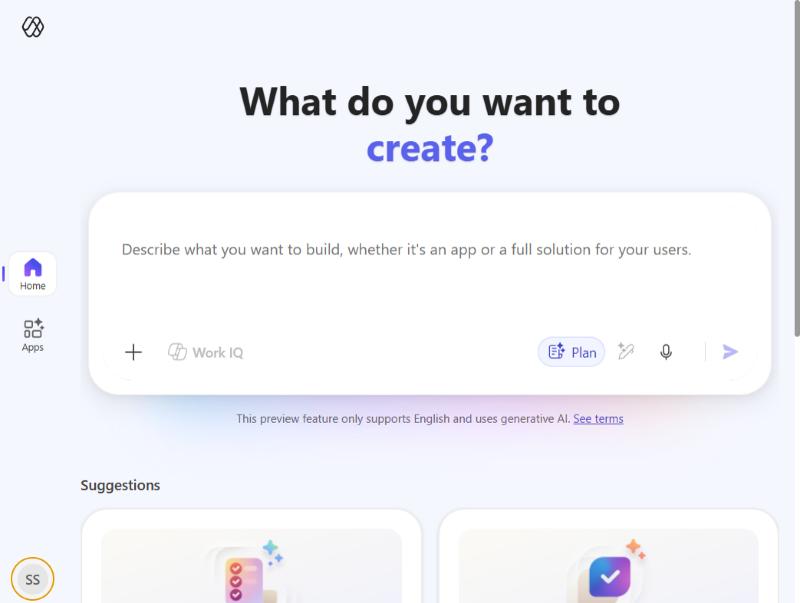
- Go to vibe.powerapps.com and sign in.
- Or sign in to Power Apps and select Try new experience (Preview) at the top. If you use this route, you have to enable it again each time you sign in.
3. The interface
3.1 Left navigation
- Home: returns you to the landing page.
- Apps: open, play, or edit apps you created, and apps others shared with you.
- Profile: the environment picker, session details, notifications, and settings.
3.2 The prompt box
Under the prompt box are these controls:
- Enter prompt: the description of what you want to build.
- Plan: a mode toggle. Plan mode is the default. It starts with a plan and possible clarifying questions before building. You can turn it off to skip planning and build directly.
- Enhance prompt (optional): expands your description with more detail before generation.
- Start dictation: speech to text. Speak into your microphone.
- Suggestions: sample prompts you can select to try the experience.
4. Step by step: from prompt to draft app
Step 1: Write the prompt
Sign in to vibe.powerapps.com and type your description. Name the users, the records, the stages a record goes through, and any approvals. The agent builds from what you give it, so a precise prompt means fewer clarifying questions and fewer edits later.
A prompt for the sample scenario in this guide might look like this:
Build a service-request tracker for an internal team. Three roles: requesters submit requests, approvers approve or reject them, and administrators see everything. A request has a title, a category, a description, and a status (Submitted, Approved, Rejected, Completed). Requesters see only their own requests. Approvers see the pending approval queue. Include filtered views by status and by owner.
This is the exact prompt we used for the build in section 17.
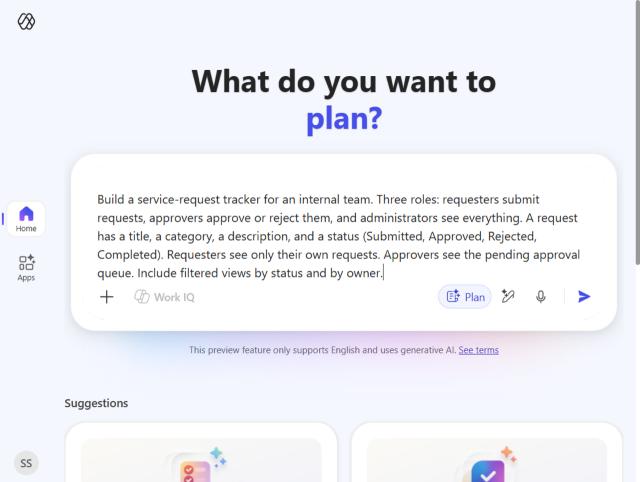
The sample prompt typed into the prompt box
You can also attach work content, covered in section 5.
Step 2: Review the plan
In Plan mode the agent shows a proposed plan before it generates anything. It may ask follow-up questions to clarify the requirements. Answer them in the chat, and edit the plan until it matches what you need.
In our build, the agent asked three clarifying questions. Each came with a recommended answer:
- How should users receive requester, approver, or administrator access? We kept Admin-managed roles.
- What should happen after an approver approves a request? We kept Approve, then complete.
- Who should be able to filter requests by owner? We kept Administrators only.
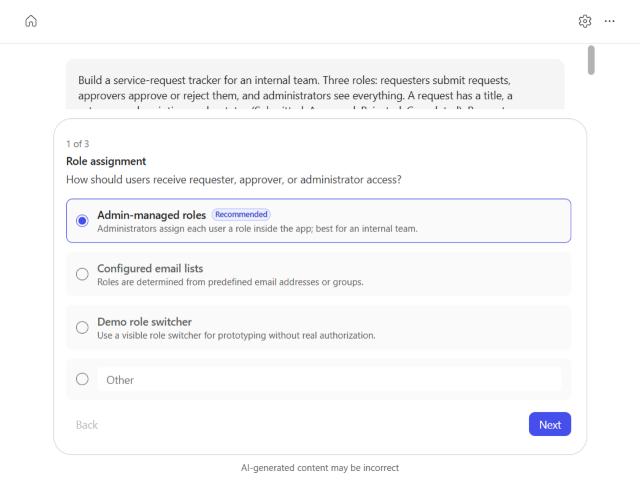
The first clarifying question, about role assignment
The plan then included a scope section. It excluded comments, attachments, notifications, service-level targets, and multi-stage approvals. We accepted the plan without edits.
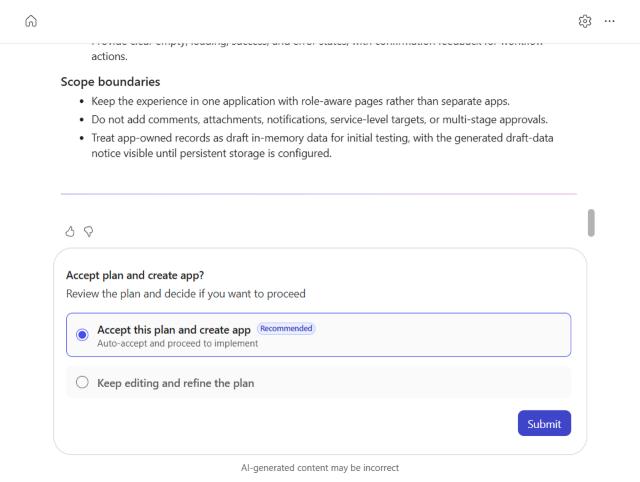
The proposed plan with its scope boundaries and the accept option
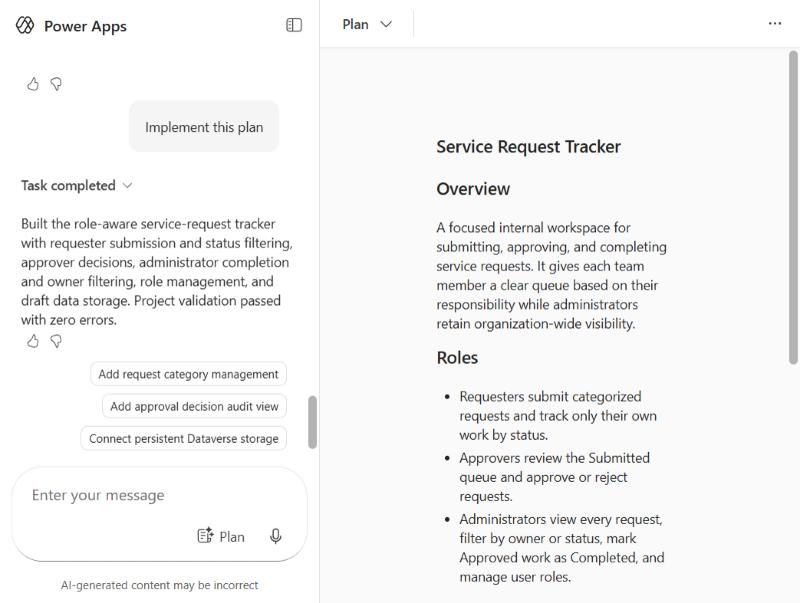
The Plan focus view with the overview and the roles
Step 3: Accept and generate
When the plan looks right, select Accept this plan and create app > Submit. The agent starts working and loads its assets. When it finishes, you have:
- a generated app,
- a data model, if the app needs one,
- and a plan, if one applies.
You can then edit all three.
In our build, the agent worked through a task list: it set the app color theme, created the data model and the data layer, built the role-aware request tracking interface and workflows, wrote project documentation, and validated the project. It finished with a message that said project validation passed with zero errors.
Step 4: Understand what’s saved
- The first save stores the app, tables, and plan together in your chosen solution.
- Your data stays in draft tables, held in memory, until you publish.
- For apps created after April 9, 2026, AutoSave is on by default. For older apps, select Save in the command bar. If you don’t see a Save button in the top right, your app is autosaved.
A solution is the container that moves your app and its components between environments. Put the app in a solution you control, so that promotion and governance work later.
5. Give the agent more context: work content
You can attach work content to a prompt, which gives the agent business context so the output is more relevant:
- Enter a prompt describing the app.
- Select + Add work content.
- Choose Work files, Emails, or Chats.
- Attach one or more items.
- Submit the prompt.
Limitations of work content (from Microsoft’s documentation):
- You need a Copilot license to use this feature.
- Encrypted or protected files aren’t supported. Some organizational policies encrypt files automatically.
- Large or complex content can reduce result quality.
- Supported types are Word (.docx), Excel (.xlsx), emails, and chats.
- Attached content is analyzed only when you generate the app. It doesn’t update in real time.
We didn’t attach work content in our build.
6. Review the generated app
The workspace is a single chat that keeps its context while you switch between three focus areas: Plan, Data, and App. Above the chat, a list of suggested next actions appears.
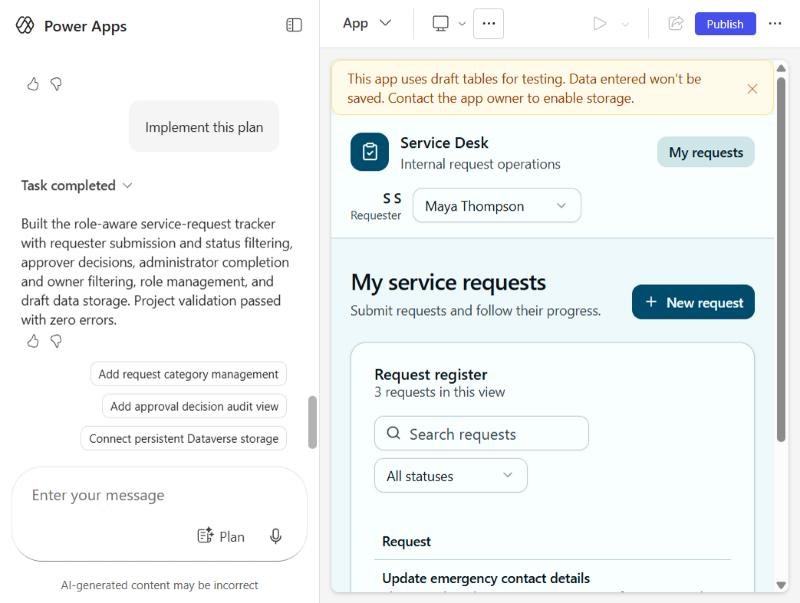
The workspace after generation, with the task list complete and Publish in the top bar
Focus areas are chosen from the menu at the top left of the workspace. In our build, some menu clicks needed a retry before the view changed.
6.1 The App focus area
When you select App, you get these tools:
- Preview: a live preview of the app.
- Code: the generated code.
- Split: the code and the preview side by side.
- Toggle inline edits: select any area and edit its text directly.
- Refresh preview: reload to see the latest changes.
- Select preview screen size: Desktop, Tablet, or Mobile.
- Play: run the app to test it. The drop-down can show a QR code, so you can scan it and open the app on a phone in a browser.
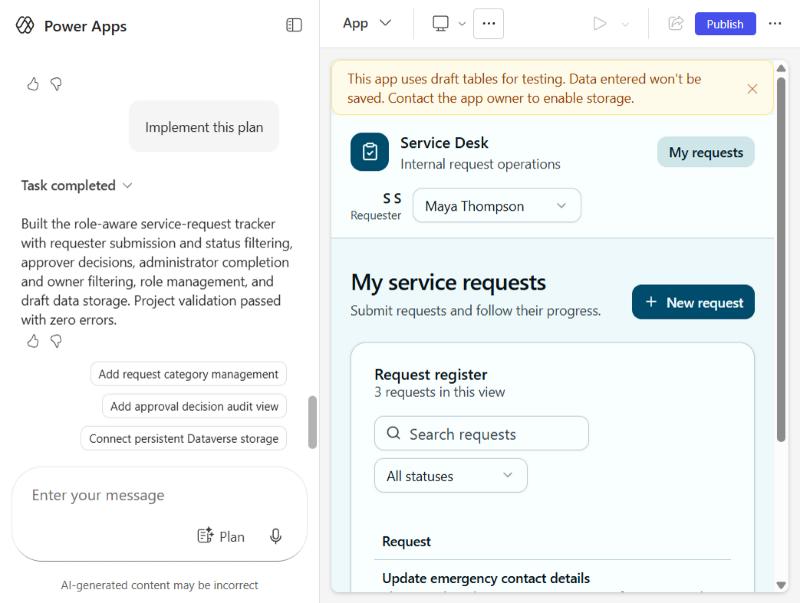
The live preview of the generated app
Microsoft’s walkthrough says to expand the src folder to read the code. In our build the file tree was different. The top level had .agent, apps, data-model, docs, and project.json, and the app’s source sat under apps/service-request-tracker. Expanding folders took a few clicks, so expect to look for the files yourself.
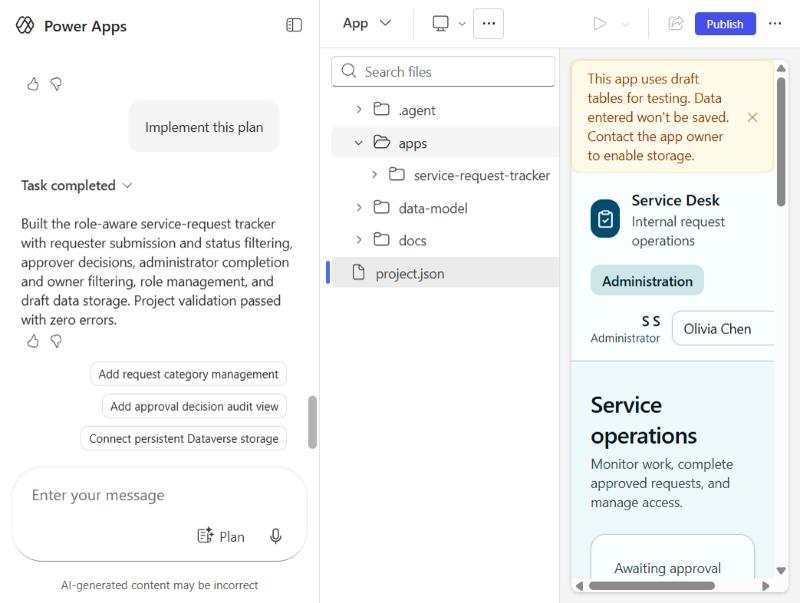
Split view with the project file tree and the apps folder expanded
6.2 Cancel a request
If you submit a request and change your mind, select the stop button.
6.3 Changes you make in one place update the others
When you change the app, the plan, or the data, the agent checks whether the other parts need updating. If they do, it applies those updates and summarizes them in the chat.
7. Edit the app
7.1 Chat edits
Use the chat under the work surface to ask questions or request changes. Examples from Microsoft’s documentation: “What does this button do?” and “Change theme to blue.”
- Questions get an explanation.
- Change requests get evaluated. The agent outlines an implementation plan, then applies it.
- Plan mode for edits: select Plan in the chat box to discuss changes before they’re applied. Accept the plan, and the agent executes it. Plan mode turns off automatically when the edits finish.
- Unsupported changes: if the agent can’t make a change directly, it gives step-by-step guidance or tells you how to retry.
7.2 Inline edits
Inline edits change styling without involving the agent:
- Select the toggle inline edits option.
- Select an element. It’s outlined and labeled with its code object, so you know what you’re changing.
- Adjust font, color, or spacing in the properties pane or inline controls.
If several elements share a style, one change applies to the group. For example, changing a button color inside a card updates all the buttons in that card group.
You can also open an inline chat on a selected element and say something like “Make this button primary blue.” The element’s context is passed automatically, so you don’t need to describe it.
Inline edits update the code directly.
Keyboard shortcuts:
- Hold and release Alt to toggle the inline edit gesture.
- Press Esc to dismiss it.
We didn’t run inline edits in our build; the walkthrough above follows Microsoft’s documentation.
7.3 Review the result
After an inline edit, check the visual preview. If you need to, switch to Code or Split to inspect the files.
8. Edit the data model
Select Data to review and change the data model. The data view shows:
- all proposed tables,
- the relationships between them,
- sample data that shows how the app uses the schema.
Important: the tables exist in memory only. They aren’t published to a data source until you publish them.
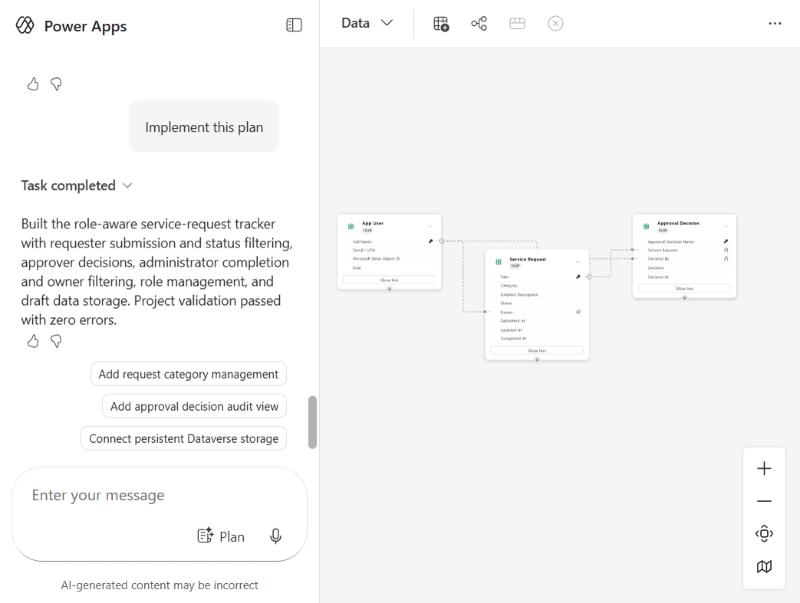
The data view with the three draft tables
In our build, the generated model had three tables:
- App User: full name, email / UPN, Microsoft Entra object ID, and role.
- Service Request: title, category, detailed description, status, owner, and submitted, updated, and completed timestamps.
- Approval Decision: approval decision name, the related service request, decided by, decision, and decided at.
8.1 Data view controls
- Data: edit the model directly.
- Add table: add a draft or existing table.
- Create relationships: connect two tables.
- Data view: the data workspace, with a diagram of the tables and relationships.
- Remove: deletes the table and its rows.
8.2 Chat edits to data
Use the chat to ask questions or request changes to fields, tables, and relationships. You can also ask for more sample data to enrich the dataset. Some actions aren’t supported through chat (see section 11).
8.3 Inline data edits
- Relationships: select the relationship line, or the ellipsis (…) next to a table, and choose Edit or Remove.
- Add a table: select Add table in the command bar. Then choose Draft table (a new in-memory table) or Existing Dataverse table.
- Add a SharePoint list: Microsoft documents adding SharePoint data in a separate article, Add a SharePoint list in Power Apps vibe.
- Add a relationship: select Add relationship in the command bar. To edit one, select the relationship line and choose Edit. You can change the type, add a lookup column, or change logical names.
- Remove a table:
- A draft table is deleted along with its rows.
- An existing Dataverse table keeps its data in the original source. Only the reference is removed from your solution.
- View and edit data: select View data in the command bar to add, remove, or change columns and rows.
- Row ownership: change it to User, Team, or Organization from View options > Row ownership, or from the row’s details in View data.
- Table properties: select the table, then View data > Properties to change the display name, plural name, description, and other details.
In our build, the table card’s menu offered View options, View data, Row ownership, Properties, and Remove. It did not offer a publish action.
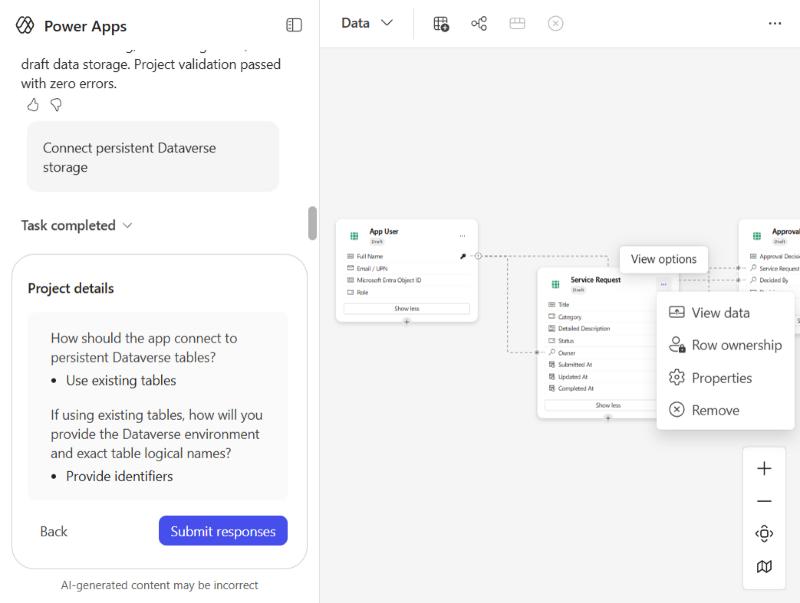
The table card menu, with no publish option
Some relationship configurations aren’t supported. See section 11.
9. Save, publish, and share
Microsoft documents these lifecycle steps. Where our build differed, we note it.
| Step | What it does |
|---|---|
| Save | Saves all edits to every solution object in your preferred solution. AutoSave is on by default for apps created after April 9, 2026. |
| Publish draft tables | Microsoft’s walkthrough places this on the data card’s context menu. In our build, that menu didn’t offer it. Publishing ran through the app’s Publish dialog instead (see below). |
| Publish | Select Publish in the app’s command bar. The dialog shows the app name and a Data setting, which defaulted to Draft in our build. |
| Share | Select Share and add accounts. You can share with Microsoft Entra ID security groups. Distribution lists and nonsecurity Microsoft 365 Groups aren’t supported. We did not share our app. |
Publishing data from the Publish dialog:
- Select Publish in the app’s command bar.
- Open the Data setting. The options were Draft and AQualityCRM-Dev. The Draft description says the data won’t be stored. The AQualityCRM-Dev description says that environment is where the data tables are published and stored.
- Choose AQualityCRM-Dev. The dialog then says your draft tables will be published to Dataverse in that environment.
- Select Publish. The progress steps are publishing data tables, preparing the app, building the app, and deploying the app. In our run, the data tables finished first.
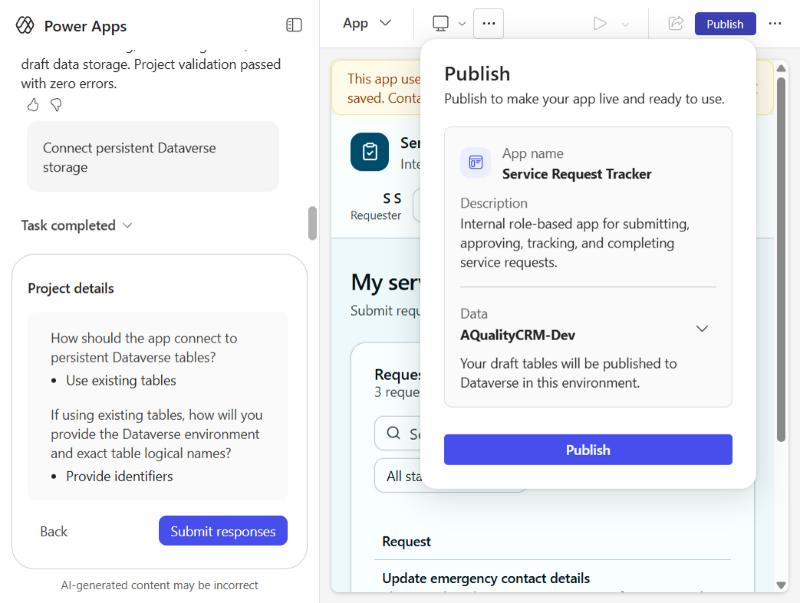
The Publish dialog with Draft and AQualityCRM-Dev as data options
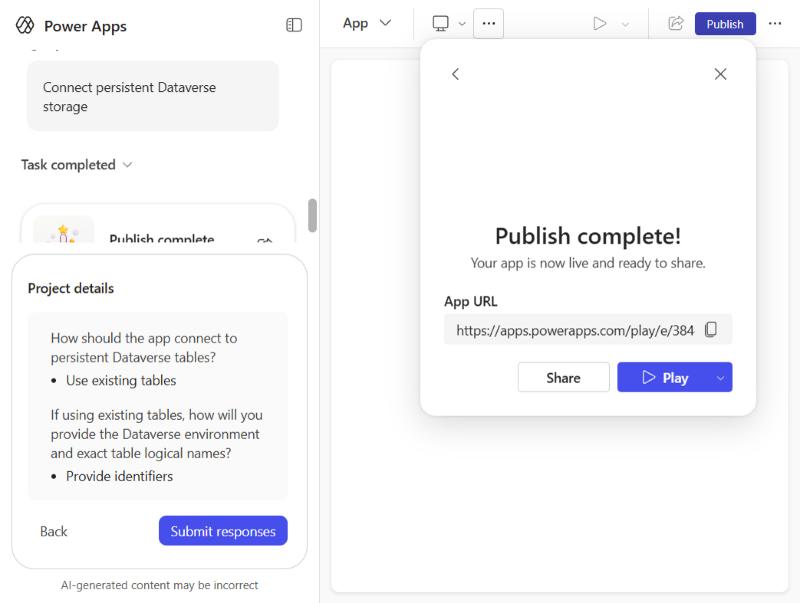
The publish complete screen, with an app URL and Share and Play options
Sharing details:
- Group sharing works only in production environments. Developer environments don’t support group-level permissions.
- A user you share an app with can only play it. They can’t edit it.
10. Feedback
- Rate generated content with the thumbs up or thumbs down icons in the chat. Select Tell us why to give specifics.
- Select Give feedback in the command bar for overall feedback. Pick a category and write your comments.
- Feature requests go to the Power Apps ideas forum.
11. Known limitations
Microsoft lists these limitations for the new authoring experience:
- You can’t access or edit apps created in the new authoring experience outside of it.
- If you export an app and edit it outside the experience (for example, in VS Code), redeploying with PAC CLI creates a new app, which disconnects it from the original plan.
- One app per plan. Multiple apps in one plan aren’t supported.
- You can’t open pre-existing plans in the new experience.
- Canvas and model-driven apps aren’t supported. You can’t recommend, open, or edit them in the new experience.
- Existing tables aren’t recommended automatically when the data model is proposed. You can add existing tables manually to your plan.
- Editing existing Dataverse tables through chat isn’t supported. Make those changes in the data editor.
- Direct code edits aren’t supported in Code or Split view.
- Coauthoring isn’t supported. Multiple makers can’t edit the same app at the same time.
- Shared users can only play the app.
Also, the work-content limits in section 5 apply.
12. Governance and safe use
Vibe makes it easy to create apps, so governance matters more, not less.
12.1 Build in a sandbox
Build the first version in a non-default environment that doesn’t hold live data. Promote the app only after review. Keep the app in a solution you control, so promotion works and you can trace what changed.
12.2 Check data loss prevention (DLP) policies
Microsoft’s DLP guidance sorts connectors into three groups: business data only, no business data allowed, and blocked. A tenant has no DLP policies by default. Tenant-level policies scoped to all environments reduce the risk of a misconfigured environment leaking data (Microsoft Learn: Data loss prevention). Review connector policies before you enable vibe for a team.
Note: a secondary source says Dataverse connectors can’t be blocked by DLP policy. That needs checking against the current DLP documentation before you rely on it. We did not test DLP in our build.
12.3 Check roles and database access
Security roles are managed per environment in the Admin center. Environment-level roles don’t automatically extend to the environment’s database, so access has to be granted separately (Microsoft Learn: Environments overview).
Test each role with a real account before you publish. Don’t rely on the generated security setup without reviewing it. Section 17 shows what we could and couldn’t check in the preview.
12.4 Review checklist
- Built in a sandbox and promoted after review
- Data model reviewed against the requirements
- Sensitive columns identified
- Each role tested with its own account
- Connector permissions and DLP groups reviewed
- Connector failure tested
- Owner and support contact recorded
- Original prompt and accepted plan kept for handover
13. Writing better prompts
These tips come from the documented workflow. They are advice, not measured results.
- Name the roles. The plan depends on who does what.
- Name the records and their fields. Tables and columns come from these.
- Write the lifecycle. List the statuses and the transitions between them.
- State the approvals. Who approves, and what happens after a decision.
- Say what each role should see. This drives screens and filters.
- Name the notifications. Say which events trigger which emails. Our prompt didn’t ask for notifications, and the plan excluded them.
- Use Plan mode for anything non-trivial. Edit the plan before you accept it.
- Use work content when you have source material. Attach a Word document or spreadsheet that defines the process.
- Change one thing at a time. Small, specific edits are easier to review than a long list.
- Use chat for logic and inline edits for looks. Inline edits don’t involve the agent and are faster for styling.
14. Where this is going
Microsoft’s documentation says app building “is now available in Copilot Cowork and will soon roll out to Microsoft Copilot Studio. We recommend using these experiences moving forward.” Microsoft also points to a blog post for details: aka.ms/AppsInCopilotStudioBlog.
This matters for planning. The vibe experience is a preview, and Microsoft is steering new work toward Copilot Cowork and Copilot Studio. Before you invest in a rollout, confirm which path Microsoft expects you to use for the next release.
15. Setup and build plan for your team
- Confirm eligibility. Check your region (US, Australia, Asia, or India) and that you use English.
- Enable the tenant setting. Turn on Copilot in Power Apps (preview).
- Decide on Anthropic models. Review your data policies, then decide whether to enable external models.
- Create a sandbox. Use a non-default environment.
- Set DLP policies. Classify connectors before any maker builds.
- Pilot one app. Use a real, low-risk process, such as the service-request tracker in this guide.
- Test every role. Use one account per role.
- Review the data model and security. Check tables, relationships, row ownership, and database access.
- Publish with Dataverse as the data target. In the Publish dialog, choose the Dataverse environment instead of Draft. Share with a security group only in a production environment.
- Document the handover. Keep the prompt, the accepted plan, and the list of manual changes.
- Expect empty data after publishing. Draft sample records don’t carry over. Plan to enter or seed test data after publishing.
16. Final thoughts
Power Apps vibe changes the starting point of app building. You describe the problem, and the platform proposes the plan, the data, and the app. The work moves to review: checking the plan, the data model, the security, and the behavior of each role.
It is a preview. It has real limits: no coauthoring, no canvas or model-driven apps, one app per plan, and direct code edits aren’t supported. Its regions are limited, and Microsoft is steering app building toward Copilot Cowork and Copilot Studio.
For a pilot, use a low-risk process in a sandbox, test every role, and write down what the agent got right and wrong. Your own measurements will tell you more than any vendor claim, including “minutes, not weeks.”
17. Our build: what happened in AQualityCRM-Dev
We built the sample service-request tracker in the developer environment AQualityCRM-Dev, using the prompt from section 4. Everything in this section comes from that run.
How we measured time: the times below are estimates from screenshot timestamps, not a stopwatch. They include our own clicks, so treat them as rough figures for one run, not a benchmark.
17.1 Setup for this run
- Environment: AQualityCRM-Dev, a non-default developer environment. We did not check its region in this run.
- Solution: we were asked to use the Vibe-Code-App solution. We did not confirm the solution choice on screen during the run, so verify it in your own tenant.
- Account: one signed-in maker account. Role testing used the preview’s built-in user switcher, not separate sign-ins.
17.2 Timings (approximate)
| Stage | Approximate time |
|---|---|
| Prompt submitted to first clarifying question | about 13 seconds |
| Answering the three questions and submitting | about 35 seconds (includes our clicks) |
| Submitted answers to plan ready | about 30 seconds |
| Accepted plan to “Task completed” | about 2.5 minutes |
| Prompt to “Task completed”, overall | about 4 minutes |
| Publish: clicking Publish to “Publish complete” | about 1.5 minutes |
17.3 Role views
We checked each role’s view in the preview, not with real accounts:
| Role | Preview user | What we saw |
|---|---|---|
| Requester | Maya Thompson | “My service requests” with a request register. Three requests before publishing, none after. |
| Approver | Priya Shah | “Approval queue” with one pending request, “Replace damaged laptop charger”. |
| Administrator | Olivia Chen | “Service operations” with counts for awaiting approval and ready to complete, plus a completed section. Counts were 1 and 1 before publishing and 0 and 0 after. |
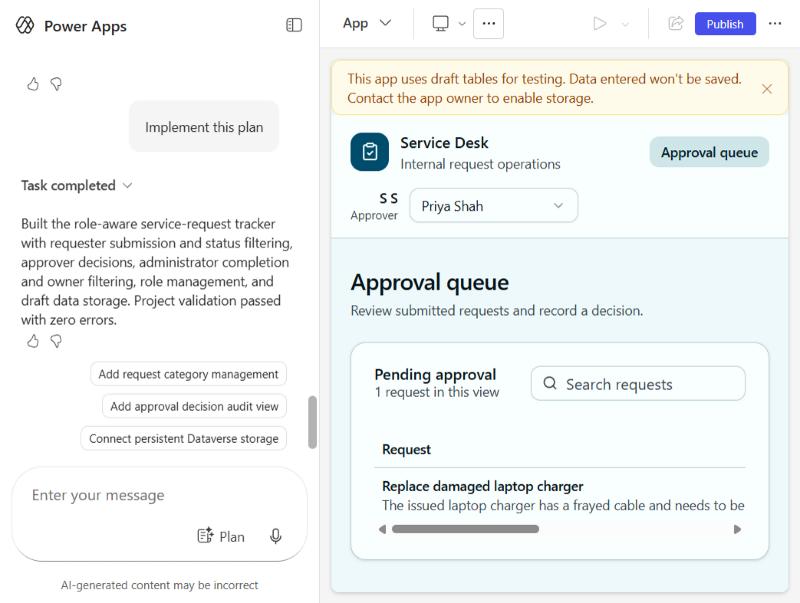
The approver’s approval queue with one pending request
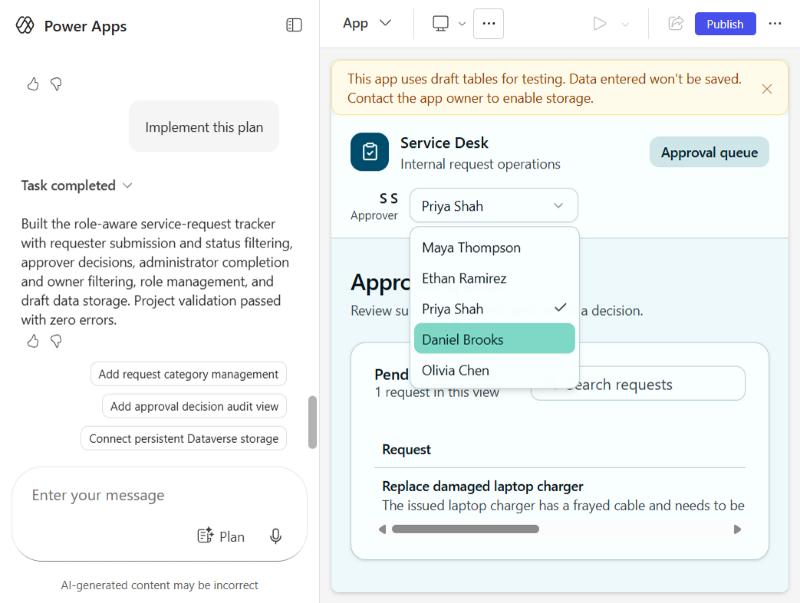
The preview’s user switcher, listing the sample users
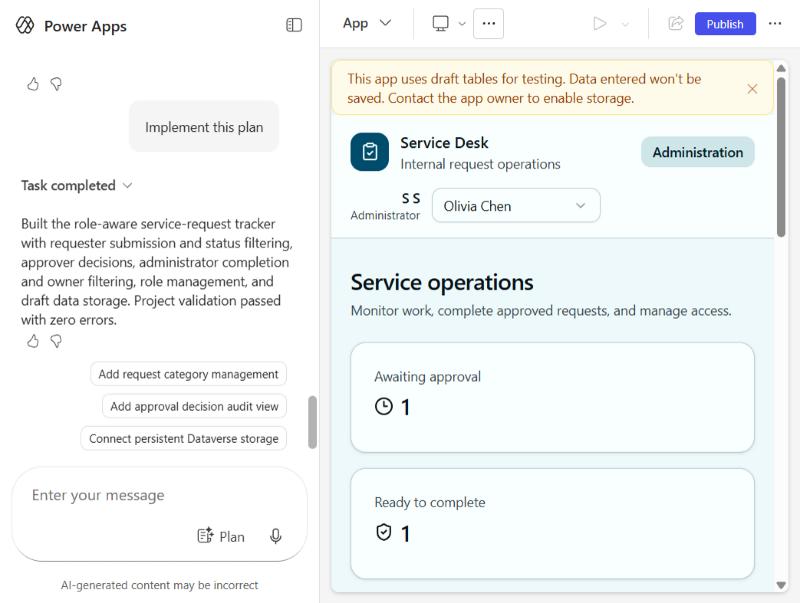
The administrator’s service operations view before publishing
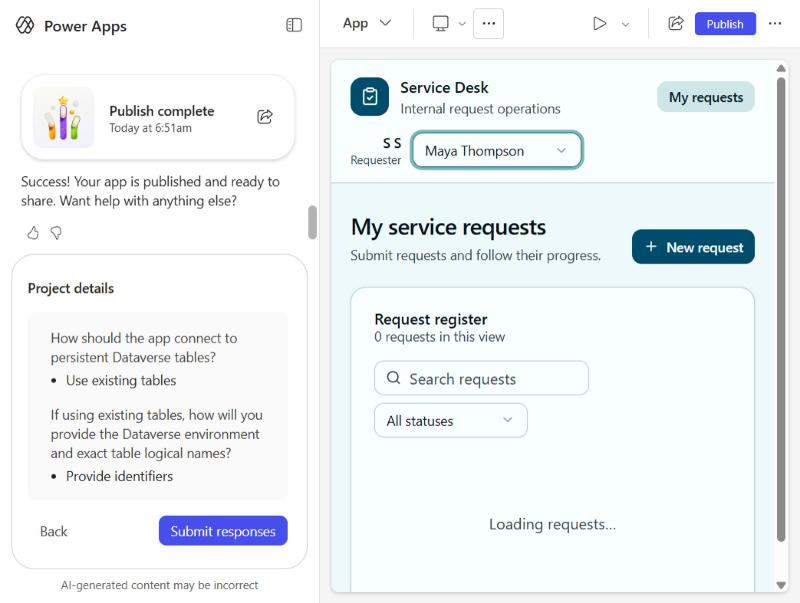
The requester’s view after publishing, with no requests
17.4 Requirement coverage
| Requirement | Result in our run |
|---|---|
| Three roles with distinct views | Three separate views appeared. Not verified with real accounts. |
| Request entity and lifecycle | Statuses appear in the administrator’s counts. We did not test the full lifecycle. |
| Approval step | The approver’s queue shows pending requests. We did not test approve or reject. |
| Filtered views | The requester view has a status filter. We did not test the owner filter for administrators. |
| Email on status change | Not built. The prompt didn’t ask for it, and the plan excluded notifications. |
17.5 Connecting storage and publishing
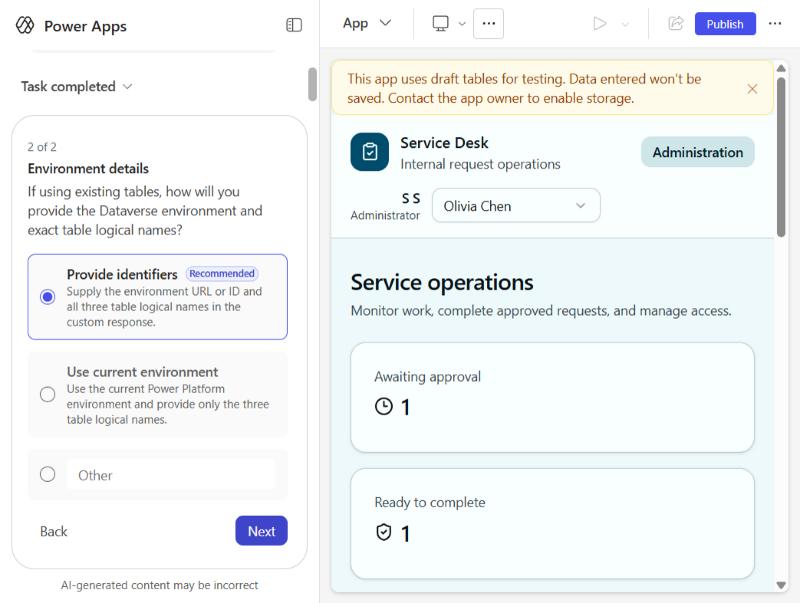
We asked the agent to connect persistent Dataverse storage, using the suggestion in the chat. Its response was a two-question wizard:
- How should the app connect to persistent Dataverse tables? The recommended answer was Use existing tables.
- If you use existing tables, how will you give the environment and exact table logical names? The recommended answer was Provide identifiers, which needs the environment URL or ID and three table logical names.
We didn’t have those details, so we didn’t use this route. The Publish dialog path was the one that worked. The wizard’s screenshot is here for reference:
The storage wizard asking for Dataverse identifiers
We then chose AQualityCRM-Dev in the Publish dialog’s Data setting and published. The result was a publish-complete screen with an app URL and Share and Play options. We did not select Share.
The publish dialog, after selecting AQualityCRM-Dev as the data environment
17.6 What changed after publishing
This is the most important finding from our run. Before publishing, the requester view showed three requests, and the administrator view showed one awaiting approval and one ready to complete. After publishing to Dataverse, the administrator view showed 0 and 0, and the requester view showed no requests.
The sample records existed only in the draft session. Publishing created the tables, but it did not copy the draft records into them. Plan to enter or seed test data after publishing.
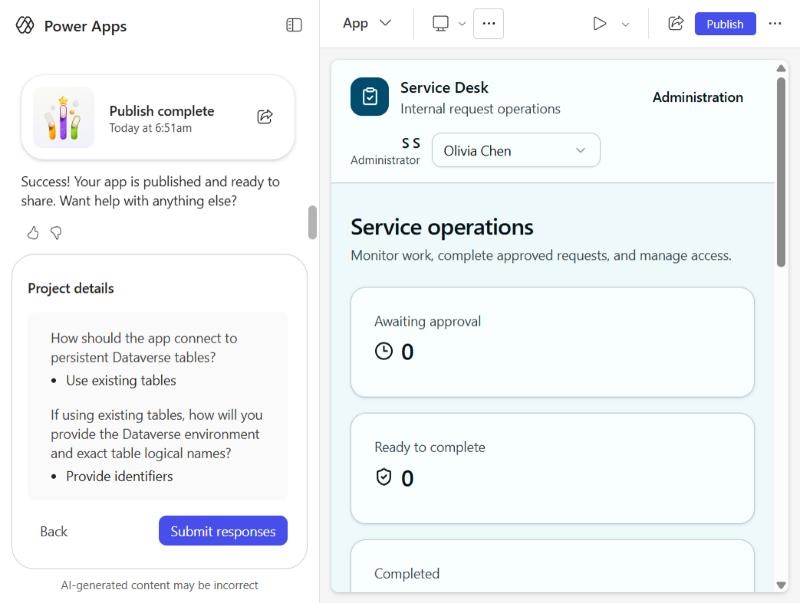
The administrator view after publishing, with zero counts
17.7 Form, mobile preview, and Play
- New request form: the requester’s New request button opens a form with a title, a category (we saw IT Support as the default), and a description. We opened the form and cancelled it, so no test record was written.
- Mobile preview: switching the preview to Mobile stacked the layout, and the New request button moved below the heading.
- Play QR code: the Play menu showed a QR code to scan on a mobile device.
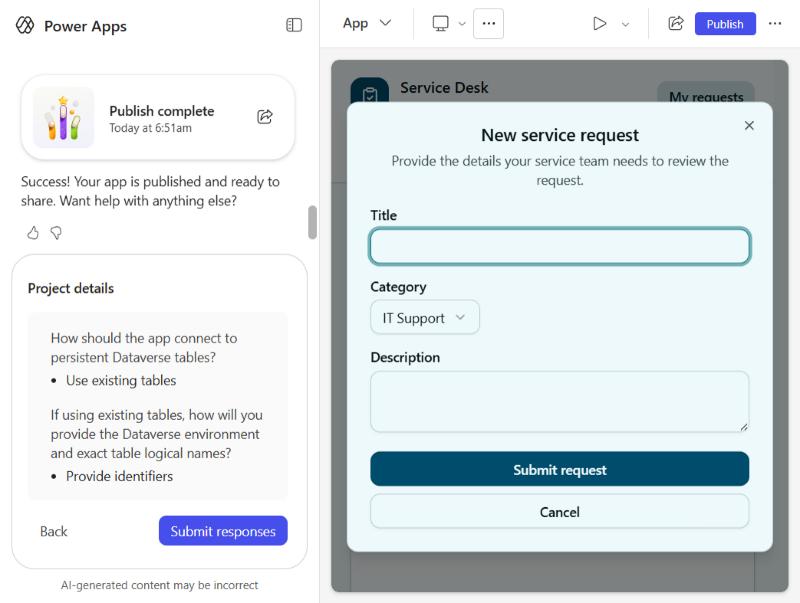
The new service request form, opened and cancelled
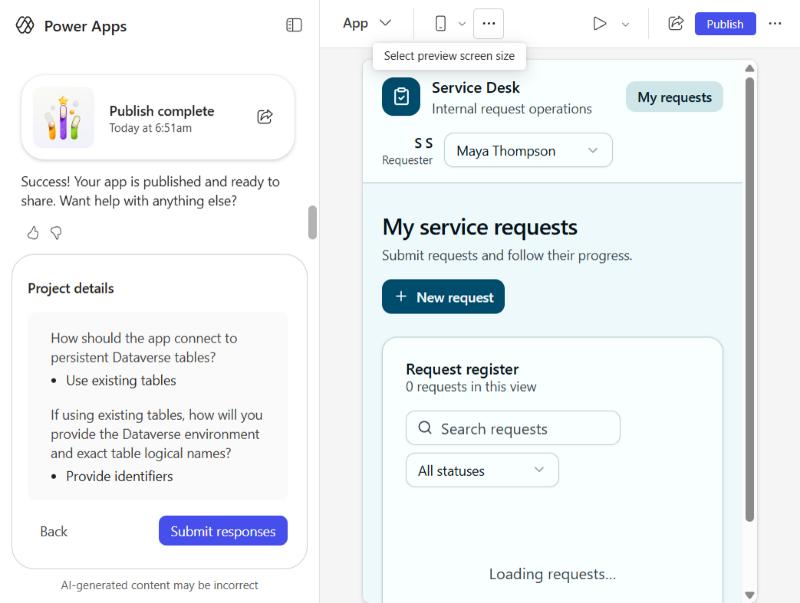
The app in the Mobile preview
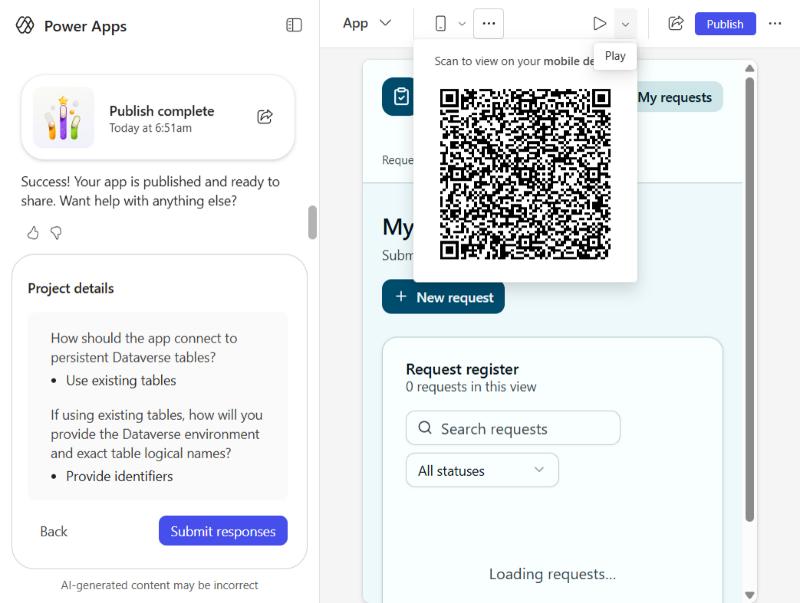
The Play menu with a QR code
17.8 What we did not test
- DLP policy effects on connectors.
- Creating, approving, or completing a live request.
- Sharing with a user or a security group.
- The owner filter for administrators and the full request lifecycle.
- Inline edits and screen-size changes beyond the mobile check.
Sources
- Microsoft Learn: Overview of the new Power Apps vibe experience
- Microsoft Learn: Create apps, data, and plans with Power Apps vibe
- Microsoft Learn: Tenant settings
- Microsoft Learn: Environments overview
- Microsoft Learn: Data loss prevention
- Video: Power Apps VIBE Experience – Step-by-Step Tutorial
- Microsoft: AI apps in Copilot Studio blog