Retirement notice: Microsoft is retiring the App Builder agent and vibe.powerapps.com on November 30, 2026. New app creation there stopped in mid-October 2026. Apps you have not migrated by that date will stop working. Use this guide to build and understand the workflow, and check Microsoft’s migration documentation for your next steps. See MC1505609.
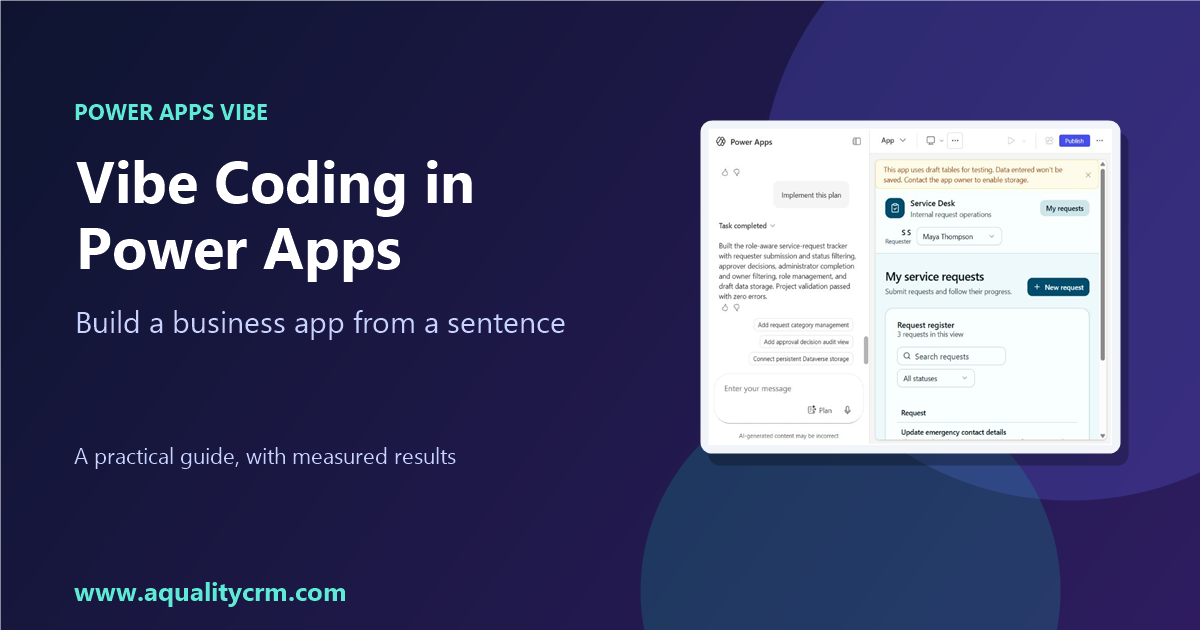
This guide walks through building the sample service-request tracker we used for our blog post, step by step, with screenshots from the build. Follow it in a non-default sandbox environment in a supported region (US, Australia, Asia, or India).
You will need:
- A tenant admin who can turn on Copilot in Power Apps (preview).
- A sandbox environment that is not the default environment.
- A maker account with access to that environment.
Step 1: Turn on the tenant setting (admin, once)
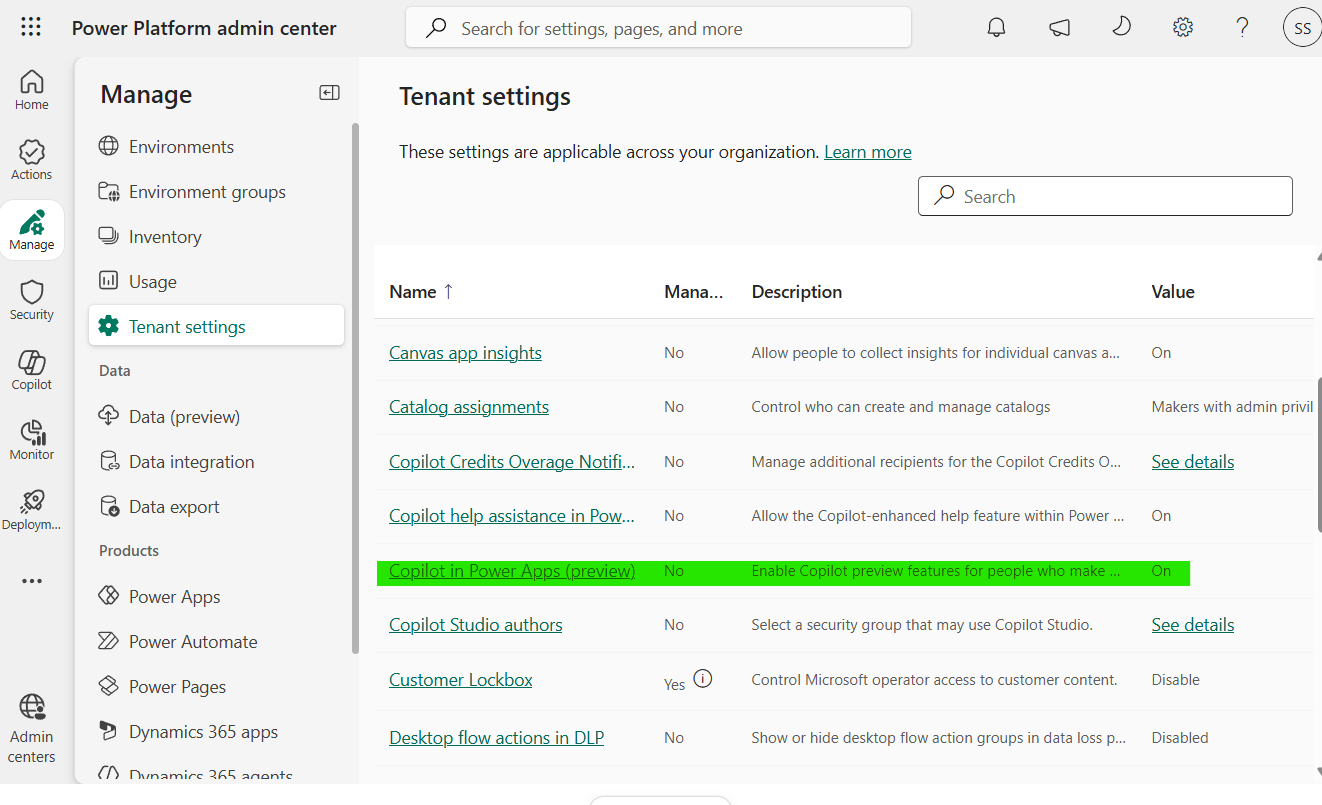
- Sign in to the Power Platform admin center.
- Go to Settings to open Tenant settings.
- Set Copilot in Power Apps (preview) to On, then select Save.
Step 2: Check your environment
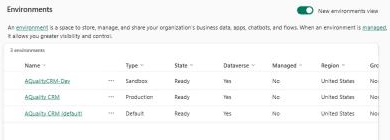
- In the admin center, go to Manage > Environments.
- Read the Region column. Your environment must be in the US, Australia, Asia, or India.
- Confirm the environment is not the default environment.
Step 3: Open the experience
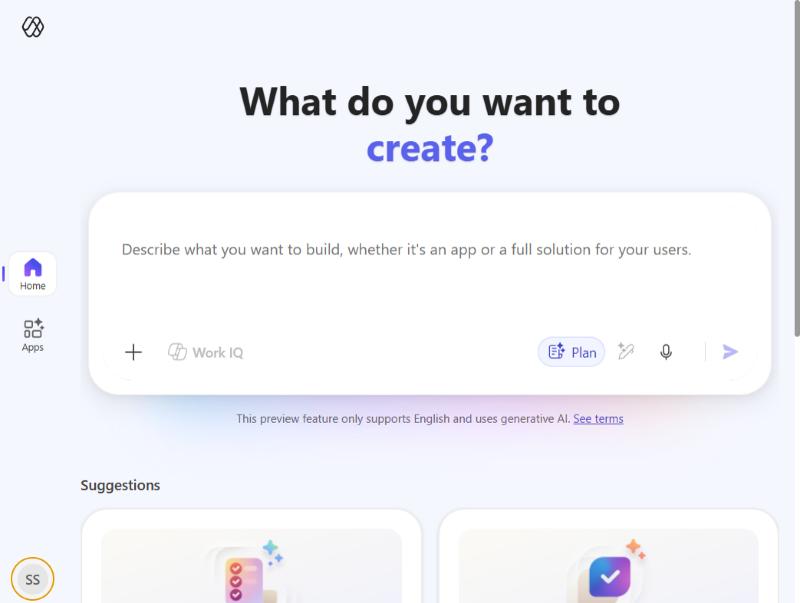
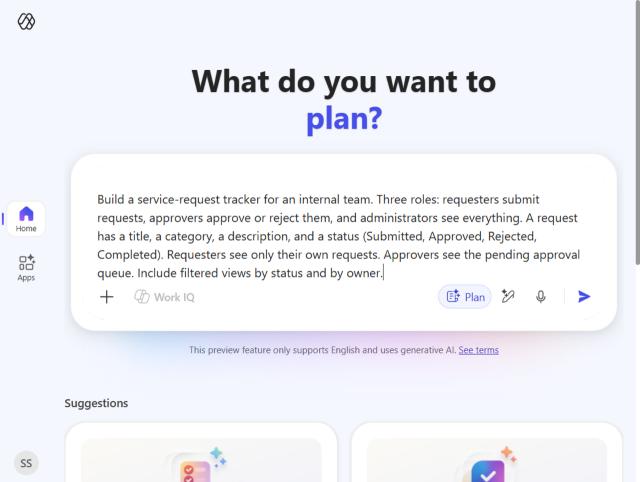
Go to vibe.powerapps.com and sign in. Confirm the environment name in the profile menu. You should see the home screen with the prompt box.
Step 4: Write your prompt
Type a description of the app. Name the users, the records, the statuses a record moves through, and the approvals. For our sample app, we used:
Build a service-request tracker for an internal team. Three roles: requesters submit requests, approvers approve or reject them, and administrators see everything. A request has a title, a category, a description, and a status (Submitted, Approved, Rejected, Completed). Requesters see only their own requests. Approvers see the pending approval queue. Include filtered views by status and by owner.
Keep Plan switched on, which is the default.
Step 5: Answer the clarifying questions
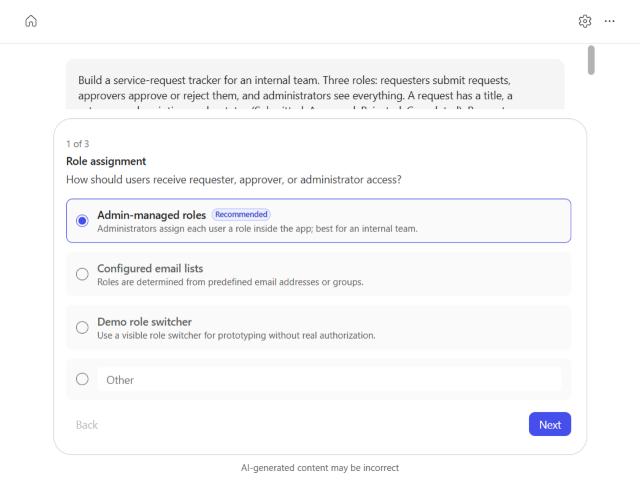
The agent asks follow-up questions, each with a recommended answer. For our build, we kept the recommended answer for all three:
- Role assignment: Admin-managed roles
- Approval workflow: Approve, then complete
- Owner filter: Administrators only
Select Next after each question, then Submit responses.
Step 6: Review the plan
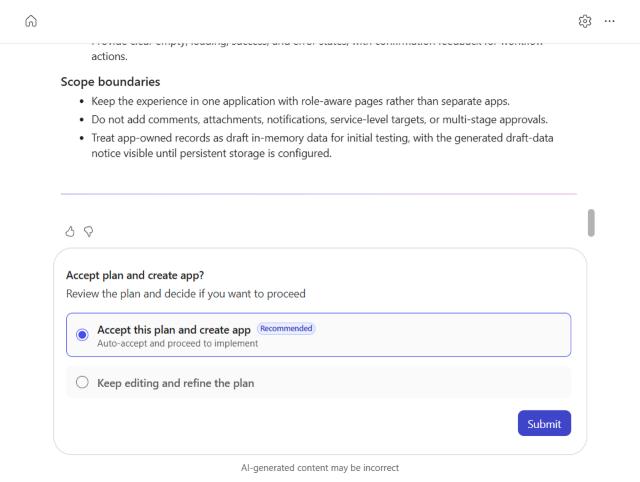
The agent shows a plan with roles, data, screens, and a scope section. Read the scope carefully. In our build, the plan excluded comments, attachments, notifications, service-level targets, and multi-stage approvals. If something is missing, say so in the chat before you accept.
To accept, select Accept this plan and create app and then Submit.
Step 7: Wait for the build
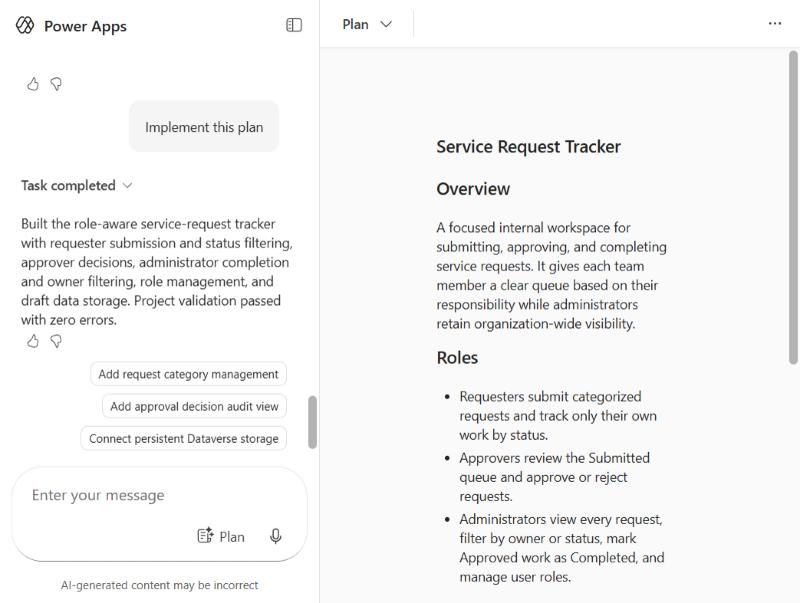
The agent works through a task list. In our build it set the color theme, created the data model, built the request interface and workflows, wrote project documentation, and validated the project. Expect a few minutes. Our build took about four minutes from prompt to completion.
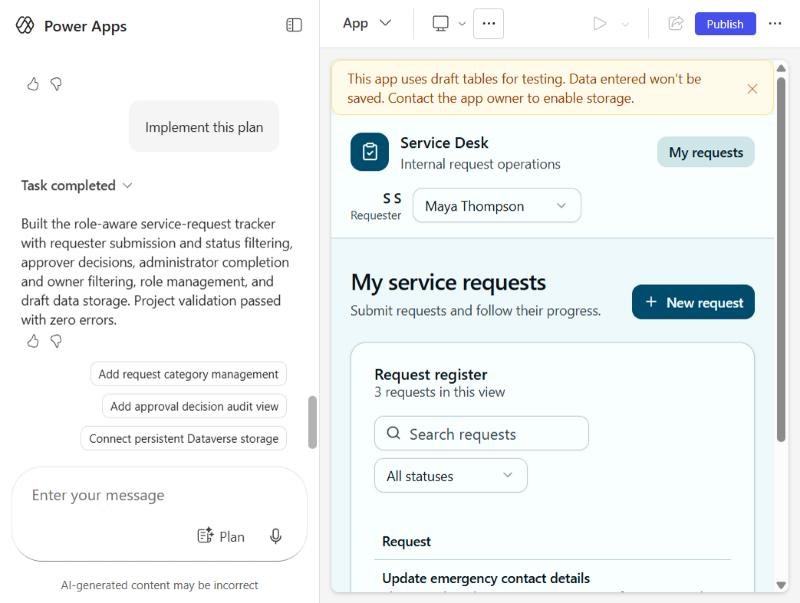
Step 8: Review the app
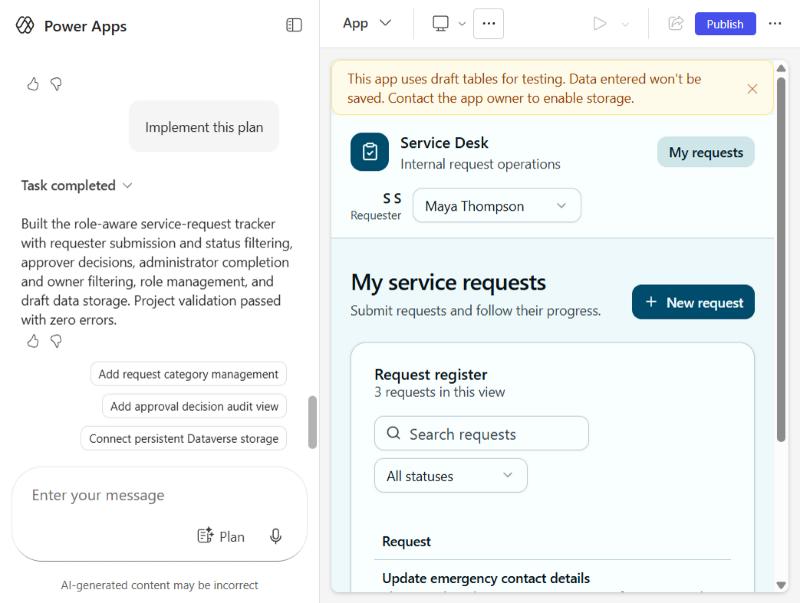
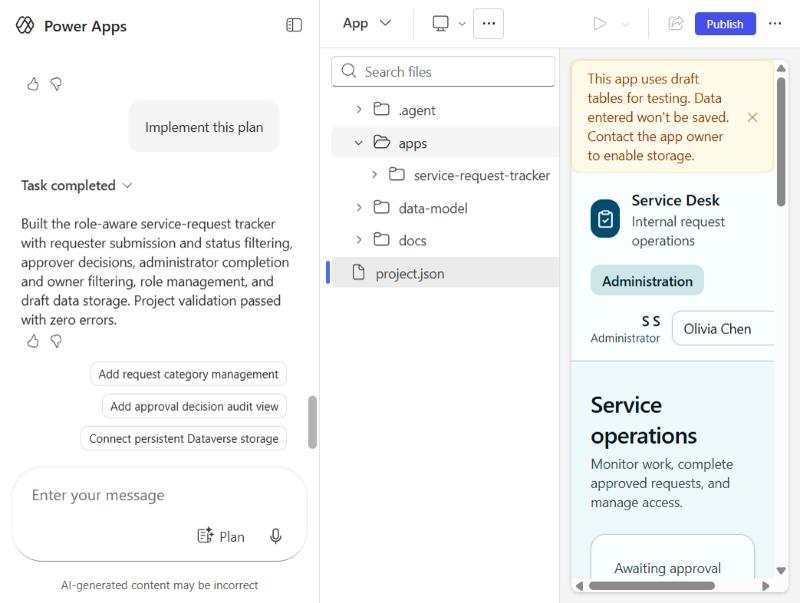
Use the focus menu at the top to switch between Plan, Data, and App. In App, you can:
- Preview the app.
- Switch the preview between Desktop, Tablet, and Mobile.
- Open Split to see the code next to the preview.
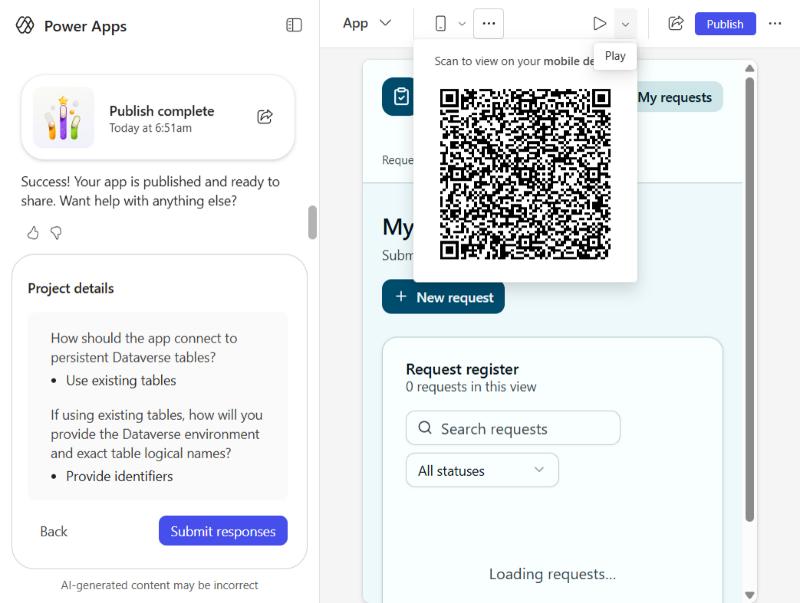
- Use the Play menu to get a QR code for a phone.
Step 9: Check the data model
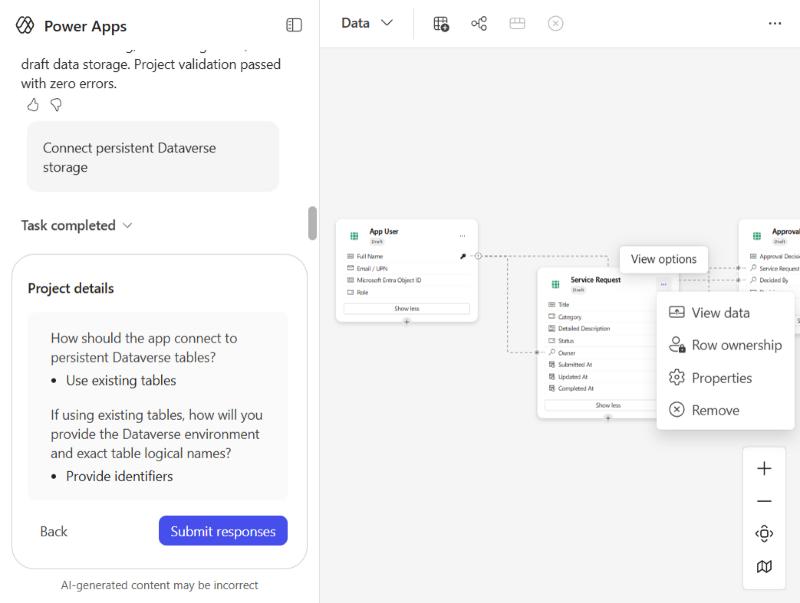
Switch to Data to see the tables, relationships, and sample data. Our build created three tables: App User, Service Request, and Approval Decision. The tables are in memory until you publish.
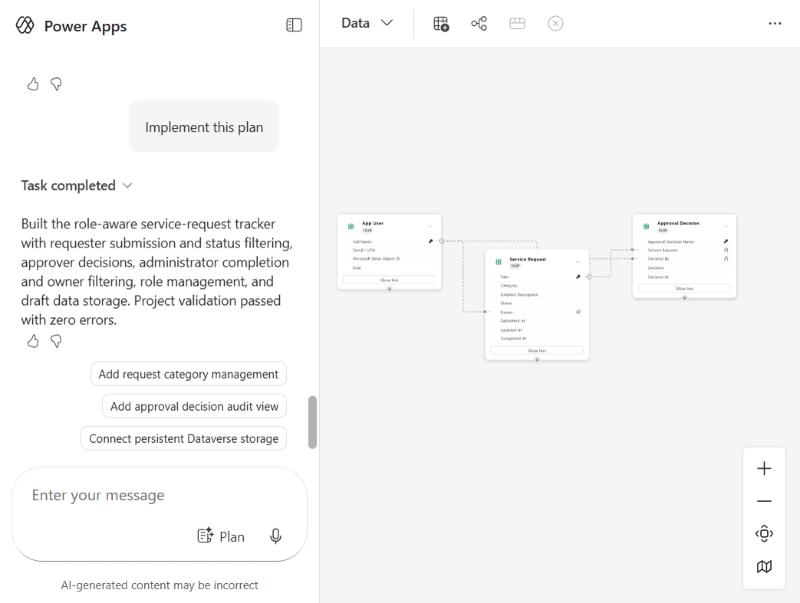
Use a table card’s menu to view data, row ownership, properties, or to remove a table. In our build, the card menu did not offer a publish action.
Step 10: Test each role
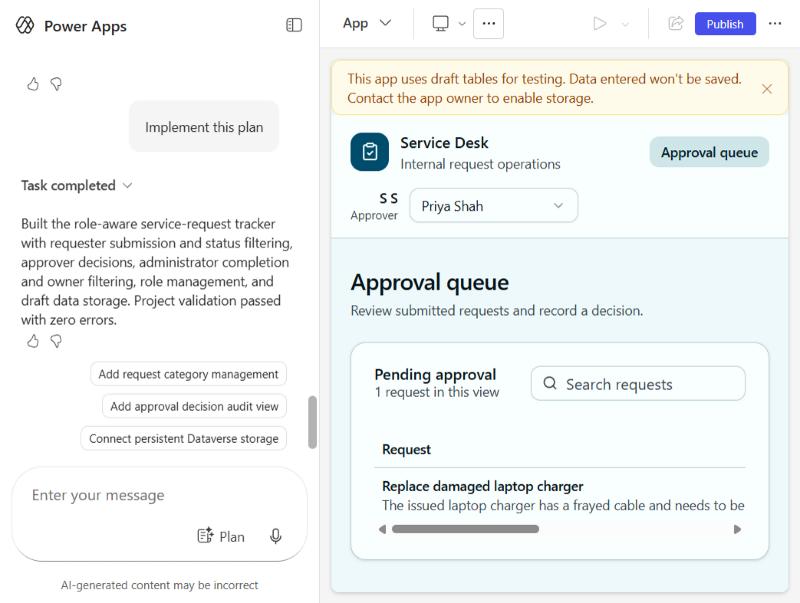
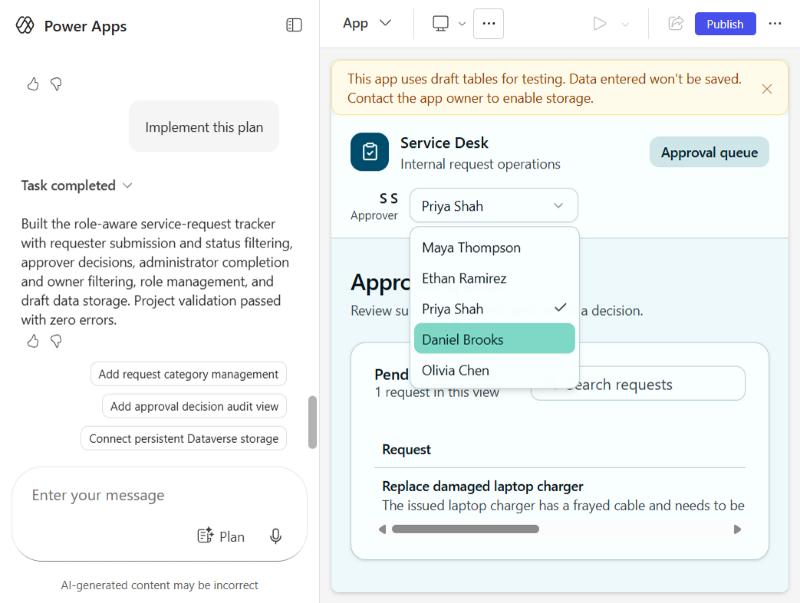
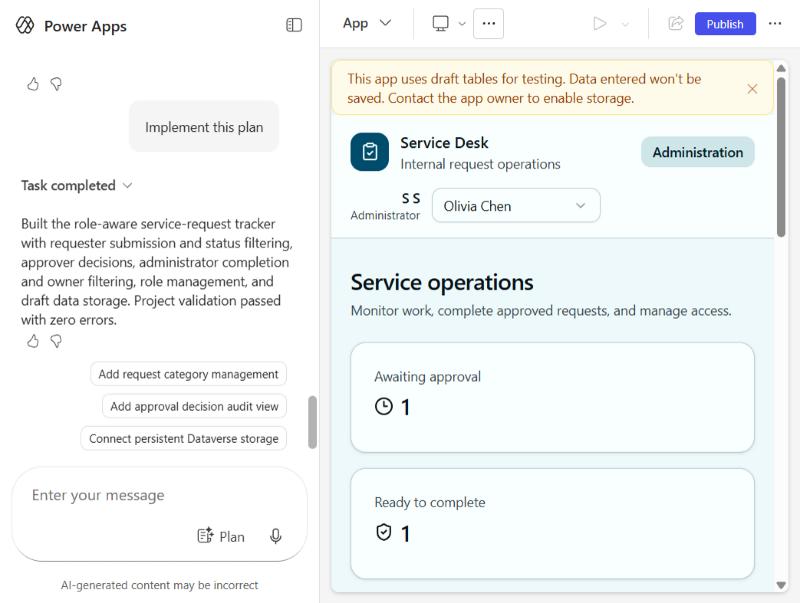
The preview has a user switcher. Choose a user from the dropdown to see the app as that role. We checked three views:
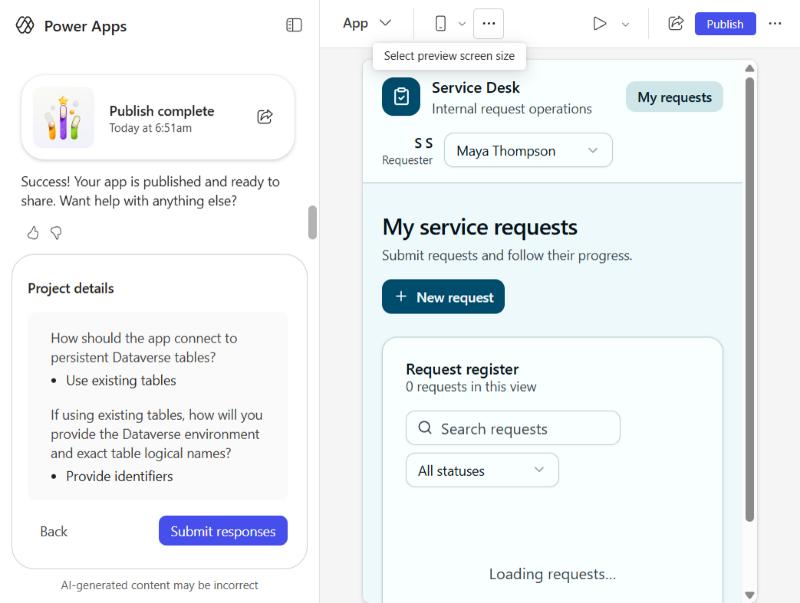
- Requester (Maya Thompson): “My service requests” and the New request form.
- Approver (Priya Shah): the approval queue.
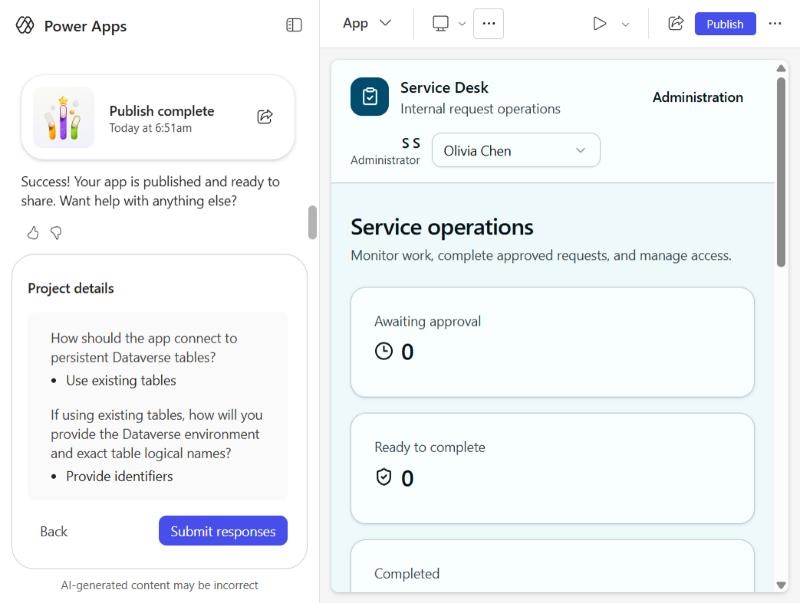
- Administrator (Olivia Chen): service operations with counts.
Test each role at least once before you publish. The preview switcher is not a real sign-in, so also test with a real account in your sandbox.
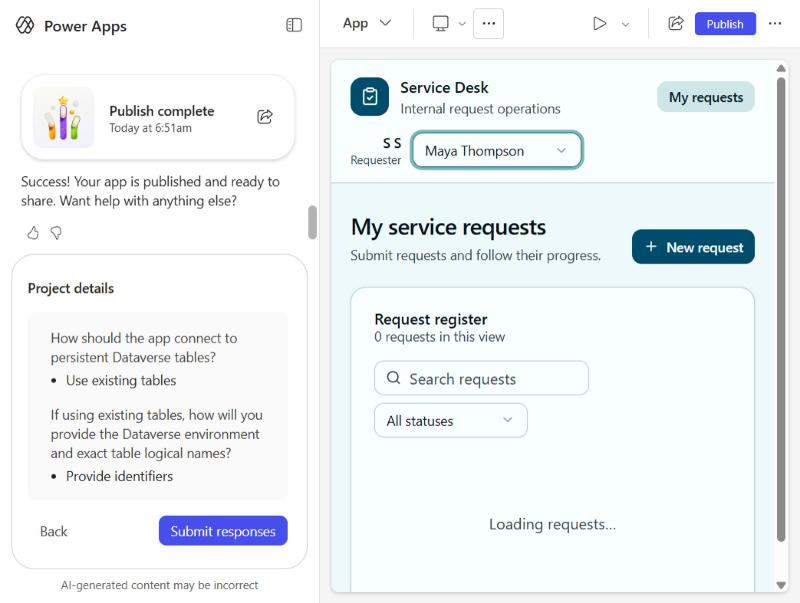
Step 11: Publish with the Dataverse environment
Publishing is where the data becomes persistent. This is the step that matters most.
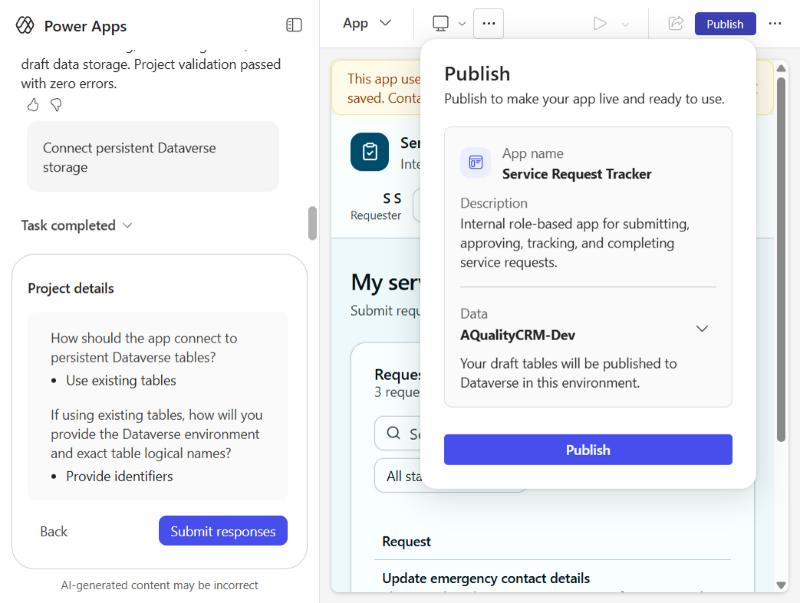
- Select Publish in the top bar.
- In the dialog, open the Data setting.
- Choose AQualityCRM-Dev (or your sandbox name). The default Draft option keeps data in the session only.
- Select Publish. The progress steps are publishing data tables, preparing the app, building the app, and deploying the app.
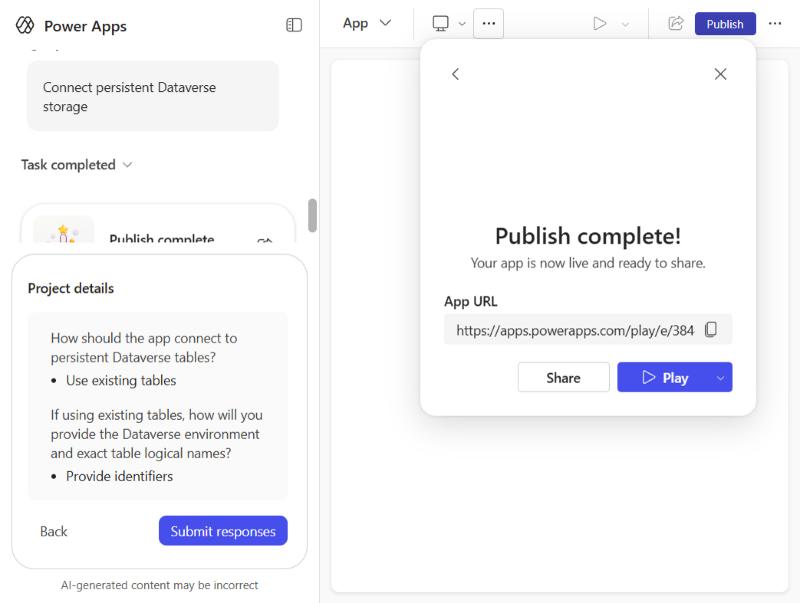
Important: the sample records did not carry over to the published tables. After publishing, our administrator view showed zero counts. Plan to enter or seed test data after you publish.
Step 12: Storage wizard (optional)
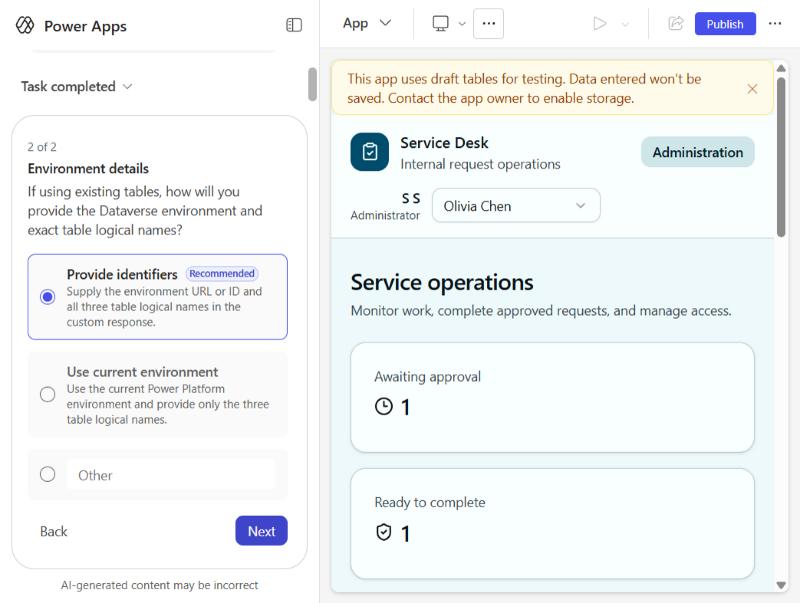
The chat can offer a storage wizard that asks for the Dataverse environment URL and exact table logical names. We did not have those details, so we used the Publish dialog instead.
Step 13: Check the form and mobile layout
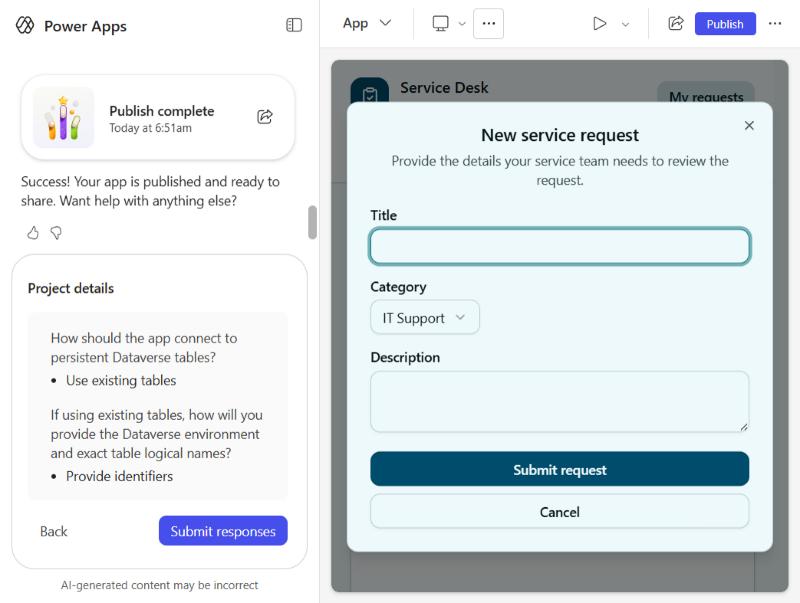
- Open New request as a requester to see the form, with a title, category, and description. Cancel it if you are only testing.
- Switch the preview to Mobile to check the layout on a phone.
- Use the Play menu’s QR code to open the app on a phone.
Step 14: Share (only when you are ready)
Share is in the top bar after you publish. In a sandbox, do not share with real users until you have tested every role. Sharing rules:
- Share with Microsoft Entra ID security groups, not distribution lists.
- Group sharing works only in production environments.
- Shared users can only play the app. They cannot edit it.
What to do next
- Inventory your apps. If you built apps in the vibe experience, list them before November 30, 2026.
- Migrate or rebuild. Microsoft says migration tools are coming, and you must migrate manually. Check the Microsoft documentation for the current steps.
- Plan for real data. Seed test data after publishing, since draft records do not carry over.
Known limits
- One app per plan.
- No coauthoring.
- Canvas and model-driven apps are not supported in this experience.
- Direct code edits are not supported in the Code or Split view.
- Existing tables cannot be changed through the chat.
- Shared users can only play the app.
Sources
- Microsoft 365 Message Center: MC1505609
- Microsoft Learn: Overview of the new Power Apps vibe experience
- Microsoft Learn: Create apps, data, and plans with Power Apps vibe